
How could we free up storage on our iPhone
Tehran(KNA): In this article we’ll take a look at how best to free up iPhone storage and how to check your iPhone memory space.
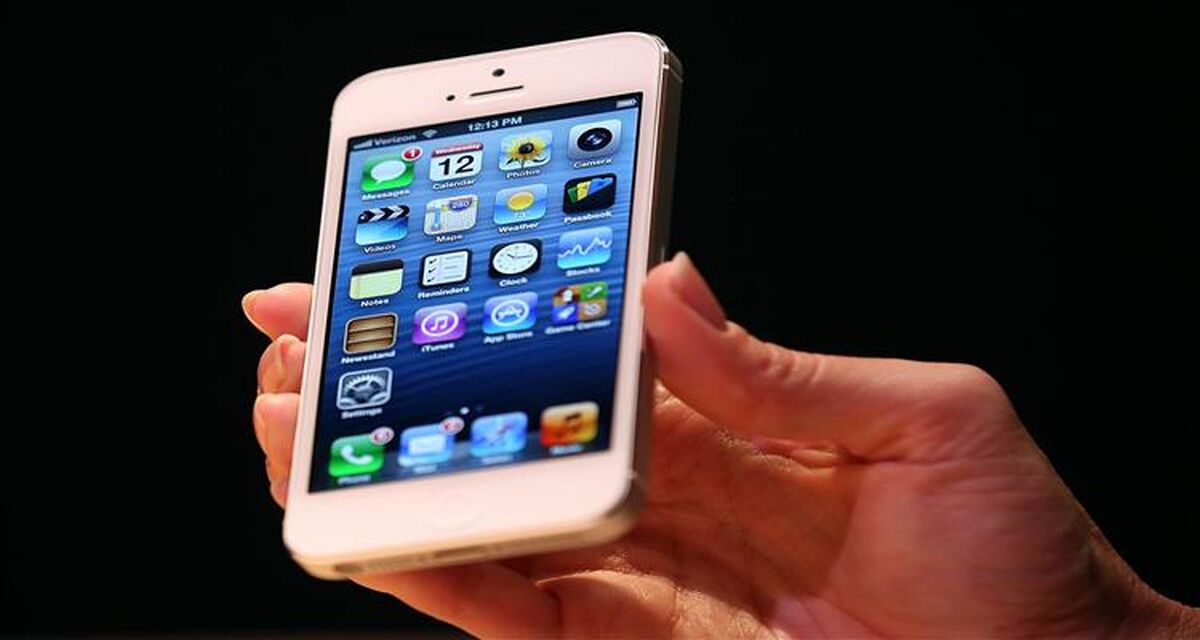
To find out how much storage space you have available on your iPhone, click Settings > General > iPhone storage. Here you will be provided an overview of how much free space the iPhone has available, as well as a detailed breakdown of everything that's using up the memory space.
On this page, if the iPhone runs on iOS 11, there may be Apple recommendations on how to optimise your storage. This includes features such as the ability to offload unused apps when the device is running low on storage, which ties in nicely onto the easiest way to free up iPhone memory: delete your apps.
Using the detailed breakdown in the iPhone storage settings, you can see just how many apps you have on the device and how much memory they take up. You can then delete the apps you don't use. A good thing to remember is that games usually take up more space than other apps, so if you haven't played some in a while, they could be good starting place.
To delete an app on your iPhone, gently press and hold on an app icon until it starts shaking. That means it can now be deleted simply by clicking the 'x' tag.
Historically, Apple didn't allow iPhone users to delete built-in apps such as Stocks or FaceTime, but since iOS 10 was introduced, users could remove the apps from the Home screen and remove the related user data and configuration files.
Another iOS recommendation is to delete your texts after a year. If that is too long, you can always change it to 30 days by going to the Messages section in Settings and scrolling down to Message History.
If that is too radical a step, you can also go through your messages and delete specific messages.
Though we live in the age of Facebook, Instagram and Twitter, where filtered photos and feel-good selfies are social currencies, our mobile devices can only hold so much data.
Apple says its iCloud Photo Library saves space by storing all the photos in full-resolution in iCloud and keeping 'lightweight versions' behind on the devices.
To free up space you can set up the iPhone to automatically upload photographs to iCloud. You can do this in Settings > Photos > iCloud Photo Library.
Unfortunately, you can't keep photos on iCloud without having them on your phone. If you use the iCloud Photo Library, the iPhone will now also store photos from all your other Apple devices and any changes you make to the images will be reflected across all devices.
Alternatively, as with texts, you can delete individual photos and videos to free up space.
Podcasts, while great, can take up a vast amount of space, especially if your phone is set to automatically download new ones every week. Go over downloaded podcasts and delete ones you've already played to save much-needed space.
To be more in control over what gets downloaded, you can change the settings in the Podcasts section. Episodes can be set up to download only new episodes, all unplayed ones or be switched completely off.
You can delete individual songs, albums or artists. You can also stay on top of what gets automatically downloaded to your phone in the iTunes & App Stores section in Settings.
If you are feeling pretty radical you can delete all music from your iPhone with a touch of a button. In Settings > General > iPhone storage find Music and under Documents & Data swipe to the left to bring up the 'Delete' button.
Source: Daily Mail